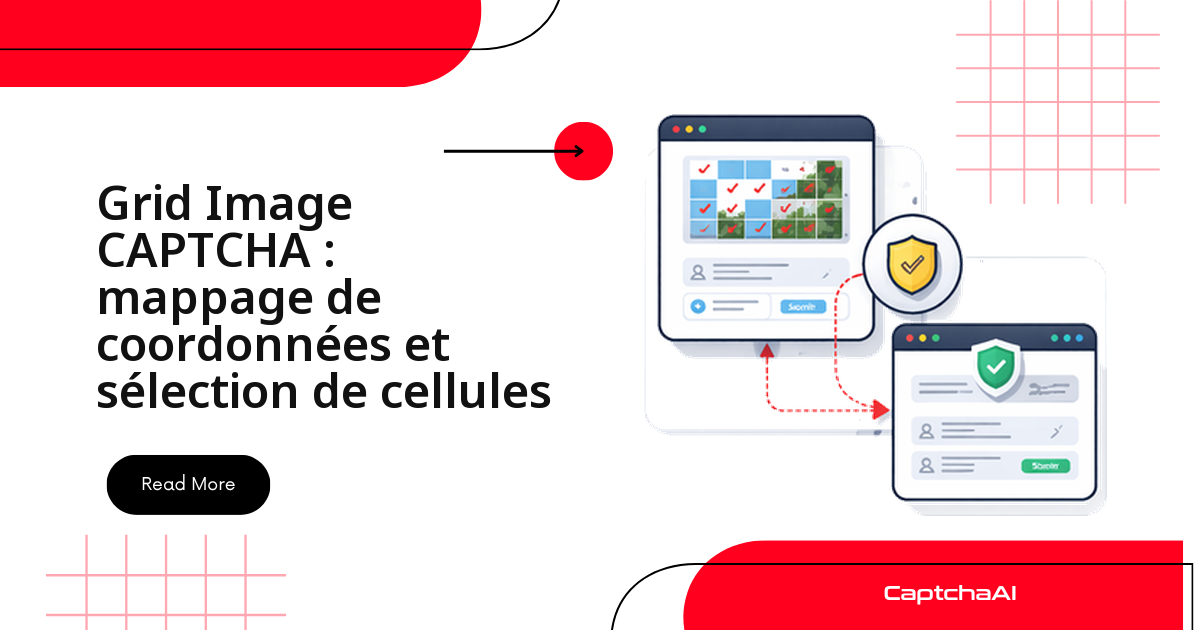
Quand un défi reCAPTCHA v2 affiche une grille d'images (« Sélectionnez toutes les cases contenant des feux de circulation »), l'API CaptchaAI vous renvoie simplement la liste des cellules à cliquer, par exemple [1, 3, 6, 9]. Tout le travail d'intégration consiste ensuite à traduire ces numéros en clics réels, au bon pixel de la grille.
Prenons un cas concret : une équipe QA qui teste un tunnel d'inscription hébergé sur OVHcloud (région eu-west-3 Paris) rencontre cette grille à chaque exécution automatisée. La logique ci-dessous est celle qu'elle applique, en Python (Selenium) comme en Node.js (Puppeteer). La chaîne d'intégration tient en trois maillons :
- Capturer la grille et sa consigne dans l'iframe reCAPTCHA v2.
- Envoyer l'image à CaptchaAI, puis interroger le résultat jusqu'à obtenir la liste des cellules.
- Convertir les index renvoyés en coordonnées, cliquer les bonnes vignettes et valider.
Ce que renvoie l'API : des numéros, pas des pixels
CaptchaAI ne vous rend jamais de coordonnées toutes faites : uniquement des index de cellules en base 1. La conversion en pixels est à votre charge, et elle dépend de la disposition. Les défis en grille utilisent deux tailles standard, et c'est la première chose à identifier avant tout clic :
3×3 Grid:          4×4 Grid:
1  2  3            1   2   3   4
4  5  6            5   6   7   8
7  8  9            9  10  11  12
                   13  14  15  16
Les cellules sont numérotées de gauche à droite puis de haut en bas, dans l'ordre de lecture. C'est la convention que renvoie CaptchaAI : l'index 1 est toujours le coin supérieur gauche, et une grille 4×4 va jusqu'à 16.
Étape 1 : capturer l'image de la grille
Le défi reCAPTCHA v2 vit dans une iframe : basculez-y, récupérez l'image, lisez la consigne et déterminez la taille de grille avant de rendre la main.
Python (Selenium)
import base64
from selenium import webdriver
from selenium.webdriver.common.by import By
from selenium.webdriver.support.ui import WebDriverWait
from selenium.webdriver.support import expected_conditions as EC

driver = webdriver.Chrome()
driver.get("https://example.com/form")

# Wait for reCAPTCHA iframe
WebDriverWait(driver, 10).until(
    EC.presence_of_element_located((By.CSS_SELECTOR, "iframe[src*='recaptcha']"))
)

# Switch to challenge iframe
iframes = driver.find_elements(By.CSS_SELECTOR, "iframe[src*='recaptcha']")
challenge_iframe = iframes[-1]  # Challenge iframe is typically the last one
driver.switch_to.frame(challenge_iframe)

# Get the grid image
grid_img = driver.find_element(By.CSS_SELECTOR, "img.rc-image-tile-33, img.rc-image-tile-44")
img_src = grid_img.get_attribute("src")

# Get instruction text
instruction = driver.find_element(
    By.CSS_SELECTOR, ".rc-imageselect-desc-wrapper"
).text
print(f"Instruction: {instruction}")

# Screenshot the grid as base64
img_b64 = grid_img.screenshot_as_base64

# Determine grid size
classes = grid_img.get_attribute("class")
grid_size = "4x4" if "44" in classes else "3x3"
print(f"Grid size: {grid_size}")

driver.switch_to.default_content()
Le iframes[-1] n'est pas arbitraire : une page reCAPTCHA charge plusieurs iframes, et celle du défi est presque toujours la dernière injectée. Repassez au contexte principal avec switch_to.default_content() dès la capture terminée.
JavaScript (Puppeteer)
const puppeteer = require('puppeteer');
const fs = require('fs');

const browser = await puppeteer.launch({ headless: false });
const page = await browser.newPage();
await page.goto('https://example.com/form');

// Find the challenge iframe
const frames = page.frames();
const challengeFrame = frames.find(f => f.url().includes('recaptcha'));

// Get instruction
const instruction = await challengeFrame.$eval(
  '.rc-imageselect-desc-wrapper',
  el => el.textContent.trim()
);

// Screenshot the grid image
const gridImg = await challengeFrame.$('img.rc-image-tile-33, img.rc-image-tile-44');
const imgBuffer = await gridImg.screenshot();
const imgBase64 = imgBuffer.toString('base64');

// Determine grid size
const className = await challengeFrame.$eval(
  'img.rc-image-tile-33, img.rc-image-tile-44',
  el => el.className
);
const gridSize = className.includes('44') ? '4x4' : '3x3';
console.log(`Grid: ${gridSize}, Instruction: ${instruction}`);
Étape 2 : envoyer la grille à CaptchaAI
Envoyez l'image avec la consigne réduite à un mot-clé simple (« traffic lights », « bus »…), puis interrogez le résultat jusqu'à obtenir la liste des cellules.
import requests
import time
import json

API_KEY = "YOUR_API_KEY"

# Parse the instruction to a simple keyword
# "Select all images with traffic lights" → "traffic lights"
import re
keyword_match = re.search(r'(?:with|of|containing)\s+(.+?)\.?$', instruction, re.I)
keyword = keyword_match.group(1) if keyword_match else instruction

# Submit
with open("/tmp/grid.png", "wb") as f:
    f.write(base64.b64decode(img_b64))

with open("/tmp/grid.png", "rb") as f:
    resp = requests.post("https://ocr.captchaai.com/in.php",
        files={"file": f},
        data={
            "key": API_KEY,
            "method": "post",
            "grid_size": grid_size,
            "img_type": "recaptcha",
            "instructions": keyword,
            "json": "1",
        }
    ).json()

if resp["status"] != 1:
    raise Exception(f"Submit error: {resp['request']}")

task_id = resp["request"]

# Poll
for _ in range(20):
    time.sleep(5)
    result = requests.get("https://ocr.captchaai.com/res.php", params={
        "key": API_KEY, "action": "get", "id": task_id, "json": "1"
    }).json()

    if result["status"] == 1:
        cells = json.loads(result["request"])
        print(f"Cells to click: {cells}")  # e.g., [1, 3, 6, 9]
        break
    if result["request"] != "CAPCHA_NOT_READY":
        raise Exception(f"Error: {result['request']}")
Tant que la réponse est CAPCHA_NOT_READY, la résolution est en cours : c'est normal. La boucle ne s'arrête que sur un vrai code d'erreur ou sur la liste finale des cellules.
Le mot-clé transmis dans instructions compte : « traffic lights » vaut mieux que la phrase complète. Si vos cibles affichent la consigne dans une autre langue, adaptez la regex d'extraction en conséquence.
Étape 3 : convertir les index de cellules en coordonnées
CaptchaAI vous rend des numéros, pas des pixels. Convertissez chaque index en base 1 vers le centre (x, y) de la cellule correspondante dans la grille :
def cell_to_coordinates(cell_index, grid_size, grid_width, grid_height):
    """Convert a 1-based cell index to (x, y) center coordinates."""
    if grid_size == "3x3":
        cols, rows = 3, 3
    else:
        cols, rows = 4, 4

    cell_w = grid_width / cols
    cell_h = grid_height / rows

    # Convert 1-based index to 0-based row/col
    idx = cell_index - 1
    col = idx % cols
    row = idx // cols

    # Center of the cell
    x = col * cell_w + cell_w / 2
    y = row * cell_h + cell_h / 2

    return int(x), int(y)

# Example: grid is 300×300
for cell in cells:
    x, y = cell_to_coordinates(cell, grid_size, 300, 300)
    print(f"Cell {cell} → ({x}, {y})")
Le piège le plus fréquent tient à l'indexation : l'API compte à partir de 1, alors que le calcul ligne/colonne se fait à partir de 0. D'où le cell_index - 1 avant le modulo et la division entière. Visez toujours le centre de la cellule, jamais un coin, pour absorber les petites variations de mise en page.
Pour une grille 3×3 de 300×300 pixels, on obtient le centre de chaque cellule ciblée :
Cell 1 → (50, 50)
Cell 3 → (250, 50)
Cell 6 → (250, 150)
Cell 9 → (250, 250)
Étape 4 : cliquer sur les cellules et valider
Récupérez les dimensions réelles de la grille au moment du clic, puis cliquez chaque cellule avant de valider.
Selenium
from selenium.webdriver.common.action_chains import ActionChains

driver.switch_to.frame(challenge_iframe)

# Get grid element position and size
grid_el = driver.find_element(By.CSS_SELECTOR, ".rc-imageselect-target")
grid_rect = grid_el.rect
grid_w = grid_rect["width"]
grid_h = grid_rect["height"]

actions = ActionChains(driver)

for cell in cells:
    x, y = cell_to_coordinates(cell, grid_size, grid_w, grid_h)
    # Click relative to grid element's top-left corner
    actions.move_to_element_with_offset(
        grid_el,
        x - grid_w / 2,  # offset from center
        y - grid_h / 2
    ).click()

actions.perform()

# Click verify
verify_btn = driver.find_element(By.ID, "recaptcha-verify-button")
verify_btn.click()

driver.switch_to.default_content()
Puppeteer
// Click each cell by index
const tableRows = await challengeFrame.$$('table.rc-imageselect-table tr');
for (const cellIdx of cells) {
  const row = Math.floor((cellIdx - 1) / (gridSize === '4x4' ? 4 : 3));
  const col = (cellIdx - 1) % (gridSize === '4x4' ? 4 : 3);
  const cell = (await tableRows[row].$$('td'))[col];
  await cell.click();
  await new Promise(r => setTimeout(r, 200));
}

await challengeFrame.click('#recaptcha-verify-button');
Les deux approches sont valables : Selenium clique par décalage depuis le centre de l'élément de grille, Puppeteer cible directement la cellule <td>. Choisissez celle qui correspond à votre pile.
Gérer les grilles à tuiles dynamiques
Certaines grilles reCAPTCHA v2 remplacent une vignette cliquée par une nouvelle image au lieu de valider directement. Il faut alors relancer capture, résolution et clic à chaque tour, jusqu'à ce que le défi disparaisse :
def solve_with_dynamic_tiles(driver, api_key, max_rounds=3):
    for round_num in range(max_rounds):
        driver.switch_to.frame(challenge_iframe)

        # Re-capture grid and instruction
        img_b64 = driver.find_element(
            By.CSS_SELECTOR, "img.rc-image-tile-33"
        ).screenshot_as_base64

        # Submit and get cells (same as above)
        cells = submit_and_poll(api_key, img_b64, "3x3", keyword)

        if not cells:
            break

        # Click cells
        click_cells(driver, cells, "3x3")

        # Click verify
        driver.find_element(By.ID, "recaptcha-verify-button").click()

        driver.switch_to.default_content()
        time.sleep(2)

        # Check if solved (no more challenge iframe)
        try:
            driver.switch_to.frame(challenge_iframe)
            driver.switch_to.default_content()
        except Exception:
            return True  # Solved

    return False
Fixez toujours un max_rounds. Quand la boucle bloque, cherchez le problème en amont — mot-clé mal extrait, capture recadrée par erreur ou mauvaise taille de grille — bien plus souvent que dans la résolution elle-même.
Bonnes pratiques et périmètre de test
Réservez ces scripts à vos propres environnements ou à des cibles pour lesquelles vous êtes autorisé à automatiser les tests. Quelques réflexes rendent l'intégration plus fiable et plus facile à auditer :
- Journalisez les index renvoyés par CaptchaAI et les coordonnées calculées : en cas d'échec, vous voyez tout de suite si le défaut vient de la résolution ou du clic.
- Minimisez les données personnelles présentes dans vos captures d'écran (obligations RGPD) : une grille d'images n'a pas à côtoyer des identifiants en clair.
- Prévoyez une solution de repli lisible quand le polling expire, plutôt qu'une exception brute.
Ces réflexes valent autant pour un tunnel hébergé chez OVHcloud ou Scaleway que pour une cible tierce testée en staging.
Dépannage
| Problème | Cause | Correctif |
|---|---|---|
| Cellules incorrectes renvoyées | grid_size erroné |
Vérifiez la classe CSS pour confirmer 3×3 ou 4×4 |
| Les clics ratent les cellules | Décalage de coordonnées | Contrôlez les dimensions réelles de l'élément de grille |
ERROR_WRONG_FILE_EXTENSION |
Format d'image non pris en charge | Envoyez du PNG ou du JPEG |
| De nouvelles tuiles après le clic | Grille dynamique | Relancez la résolution à chaque tour |
FAQ
L'API renvoie-t-elle des coordonnées ou des numéros de cellule ?
Des numéros de cellule en base 1, jamais des pixels. CaptchaAI rend une liste comme [1, 3, 6, 9] ; à votre code de convertir chaque index en coordonnées de clic.
Comment savoir si la grille est en 3×3 ou 4×4 ?
Lisez la classe CSS de l'image : rc-image-tile-33 indique une grille 3×3, rc-image-tile-44 une grille 4×4. Renseignez grid_size en conséquence avant l'envoi.
Pourquoi mes clics tombent-ils à côté des bonnes cellules ?
Le plus souvent, vous calculez les coordonnées sur une taille figée (300×300) alors que l'élément a d'autres dimensions. Récupérez ses dimensions réelles au moment du clic et visez le centre de chaque cellule.
Que faire quand de nouvelles tuiles apparaissent après un clic ?
C'est une grille dynamique : la vignette cliquée est remplacée au lieu de valider. Bouclez sur capture, résolution et clic tour par tour, avec une limite de tours pour éviter les boucles infinies.
Faut-il envoyer la grille entière ou une vignette découpée ?
Envoyez toujours la grille complète, sans recadrage ni compression. CaptchaAI raisonne sur la disposition entière pour numéroter les cellules ; une vignette isolée casse la correspondance entre l'index renvoyé et sa position réelle.
Passez à la pratique
Créez votre compte et récupérez votre clé API sur captchaai.com, puis résolvez votre première grille reCAPTCHA v2 avec les scripts ci-dessus.